The Dashboard Overview
Everything you see when you log in. Here is how the layout works.
When you open the database, you get a single-page interface designed for fast prospecting. No clicking through multiple pages or tabs. Everything is right in front of you.
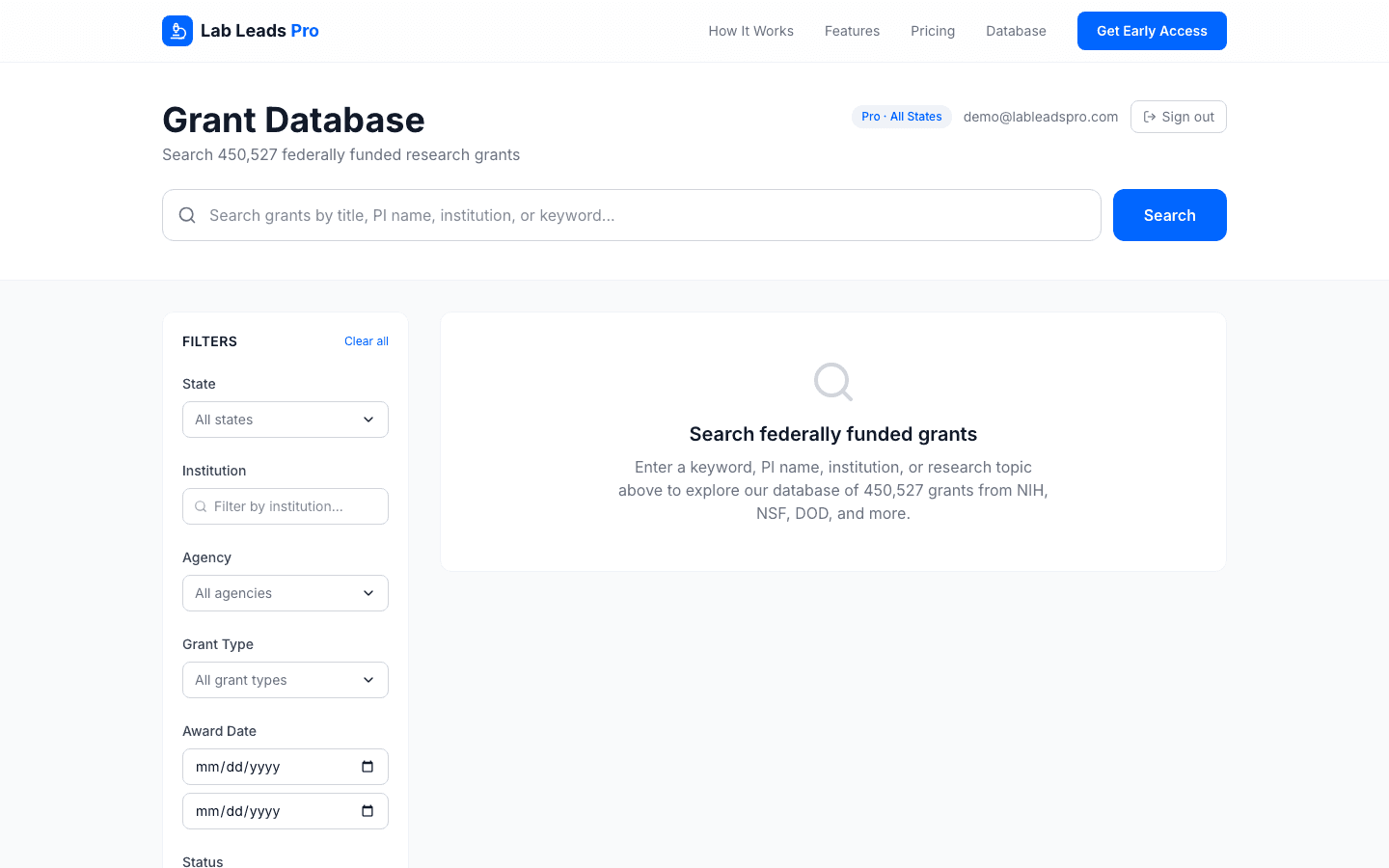
- Search bar at the top for keyword, PI name, institution, or topic searches.
- Filter sidebar on the left with state, institution, agency, grant type, date range, and award amount filters.
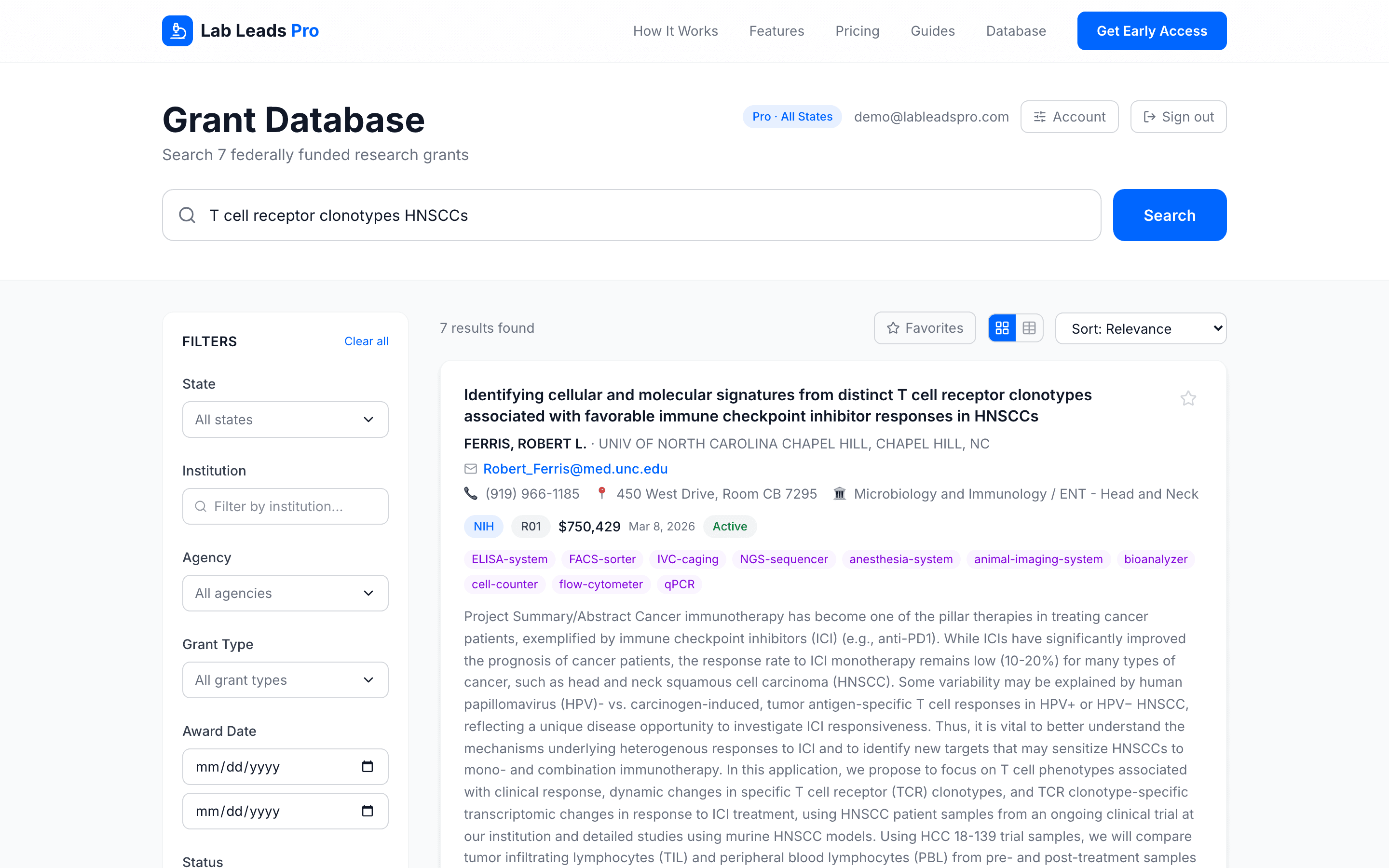
- Results area showing grant cards with key info at a glance: PI name, institution, agency, award amount, and equipment tags.
- Sort options (relevance, newest, highest award) to organize results the way you work.
- Your subscription badge in the top right showing your plan and which states you have access to.
Searching for Grants
Full-text search across titles, abstracts, PI names, and institutions.
The search bar is the fastest way to find leads. It searches across grant titles, full abstracts, PI names, and institution names. Type what you sell and see who is buying it.
- Equipment types: "confocal microscope," "mass spectrometer," "sequencer," "flow cytometer"
- Research topics: "CRISPR," "Alzheimer," "proteomics," "single-cell RNA"
- People and places: Search for a specific PI name or institution to see all their funded grants.
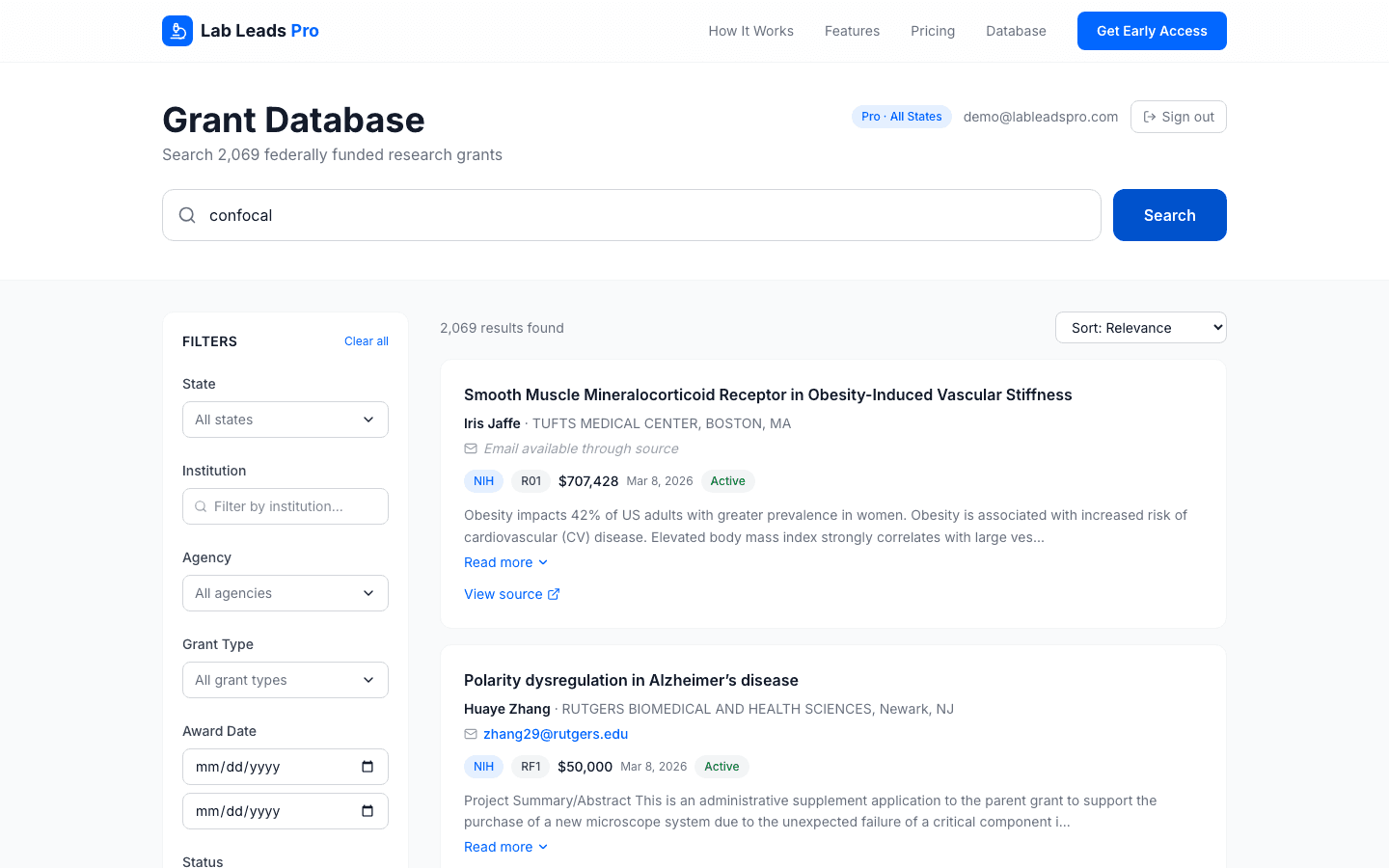
The point: When a PI writes in their grant abstract that they need a new confocal microscope, and their grant just got funded, that is not a cold call. That is someone with budget approval to buy exactly what you sell.
Filtering by State
Narrow results to your territory.
Click the state dropdown in the filter sidebar to limit results to specific states. Select one or multiple states to match your territory.
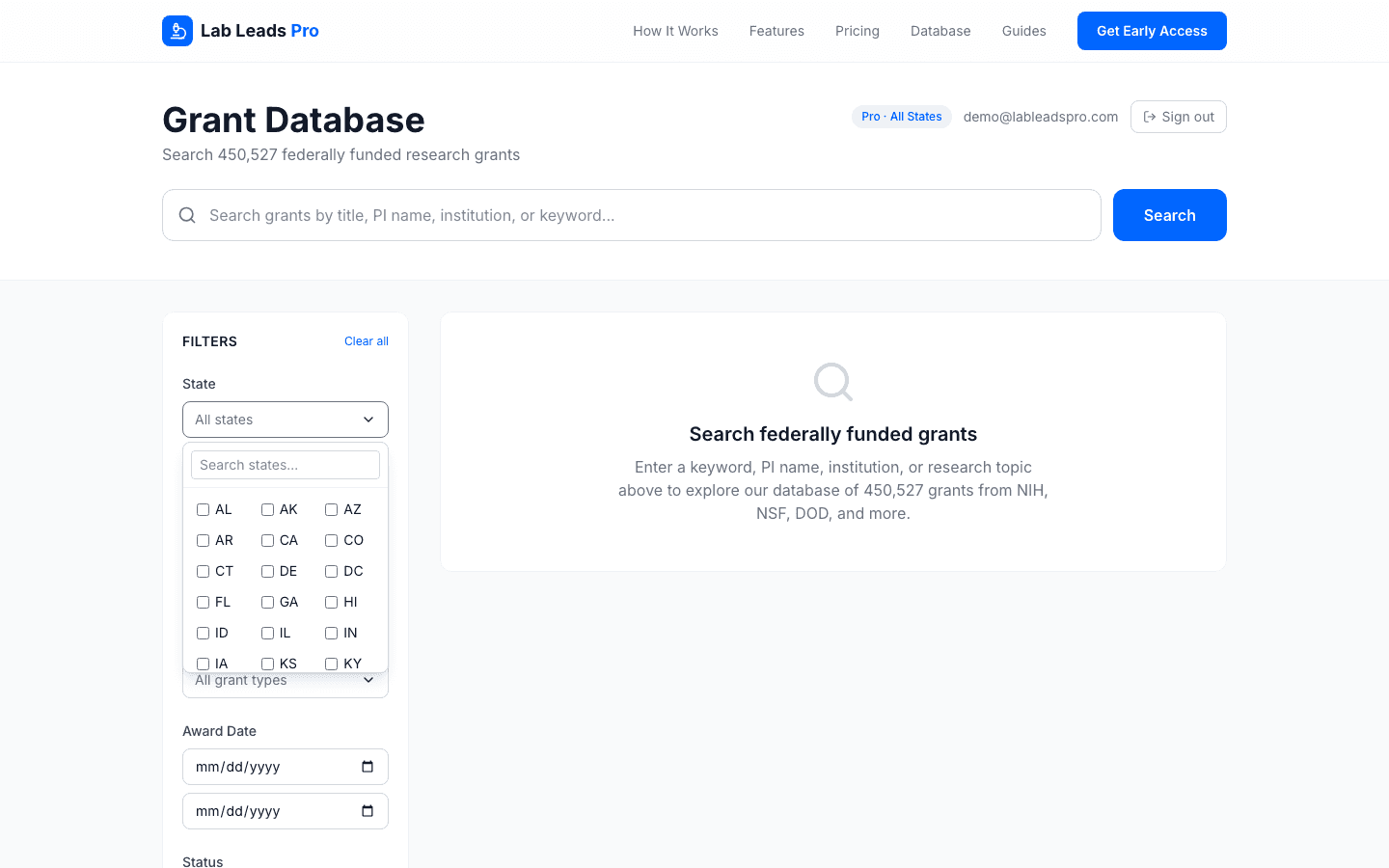
- Your subscription determines which states you can access. You will only see data for states included in your plan.
- Select multiple states if your territory spans a region.
Pro tip: Use the state filter first to focus on your territory, then layer on other filters. Find leads in your backyard before casting a wider net.
Filtering by Agency
Focus on the funding sources that matter for what you sell.
The agency filter lets you drill into specific funding sources. Select or deselect agencies to focus your search on the programs most likely to buy your equipment.
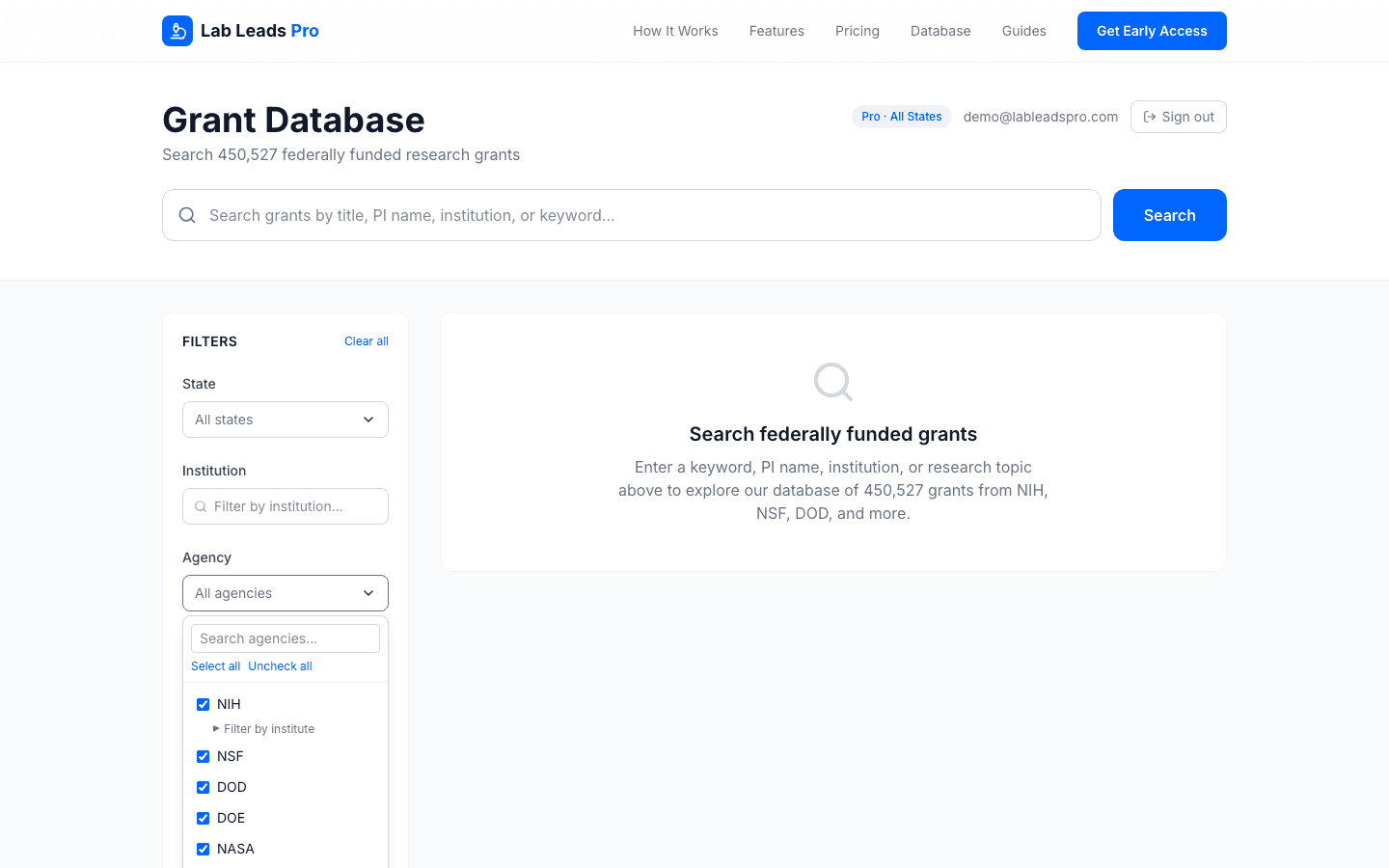
- Filter by NIH, NSF, DOD, DOE, NASA, VA, USDA, or CDC.
- NIH sub-filter: Drill into specific NIH institutes like NCI, NIGMS, NIAID, and others to get even more targeted.
Pro tip: If you sell into defense labs, filter to DOD. If your territory has land-grant universities, check USDA. Match the agency to your market and you will cut through noise fast.
Filtering by Grant Type
Activity codes tell you what kind of grant it is and how likely it is to include equipment purchases.
The grant type filter lets you select specific activity codes. Some grant types are far more likely to involve equipment purchases than others.
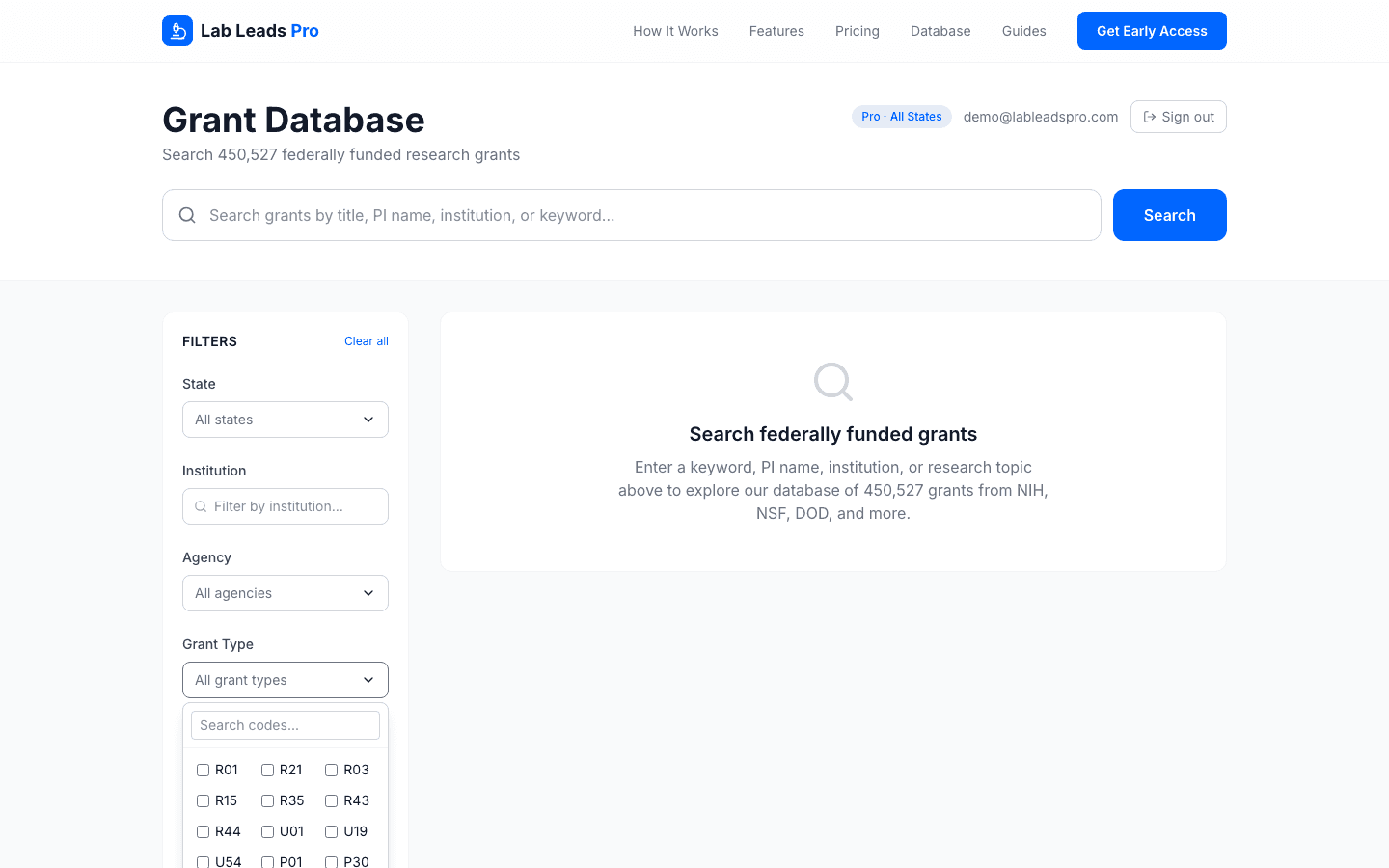
- S10 grants are literal equipment purchase orders. These exist specifically to buy shared instrumentation. If you see an S10, someone is buying something.
- R01s in year 1 often have equipment line items as PIs set up or expand their research programs.
- New investigator awards (R35, K awards) mean someone is building a lab from scratch. They need everything.
Want the full breakdown? Check out our Grant Types Guide for a detailed explanation of what each activity code means and which ones to prioritize.
Reading a Grant Card
Every piece of information on the card, and what it means for you.
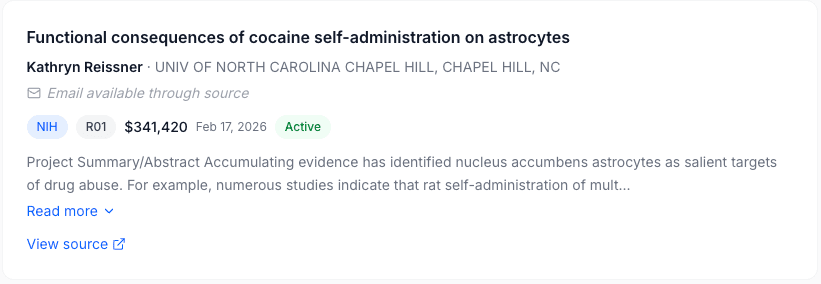
Each grant in the results is a card you can expand to see full details. Here is what every element on the card tells you.
New Investigator Badges
The highest-value leads in the database. Someone is building a lab from scratch.
Certain grant types signal that a PI is either starting a brand new lab or transitioning to independence. These are flagged with colored badges on the grant card because they represent the single best moment to reach a buyer: when they need everything.
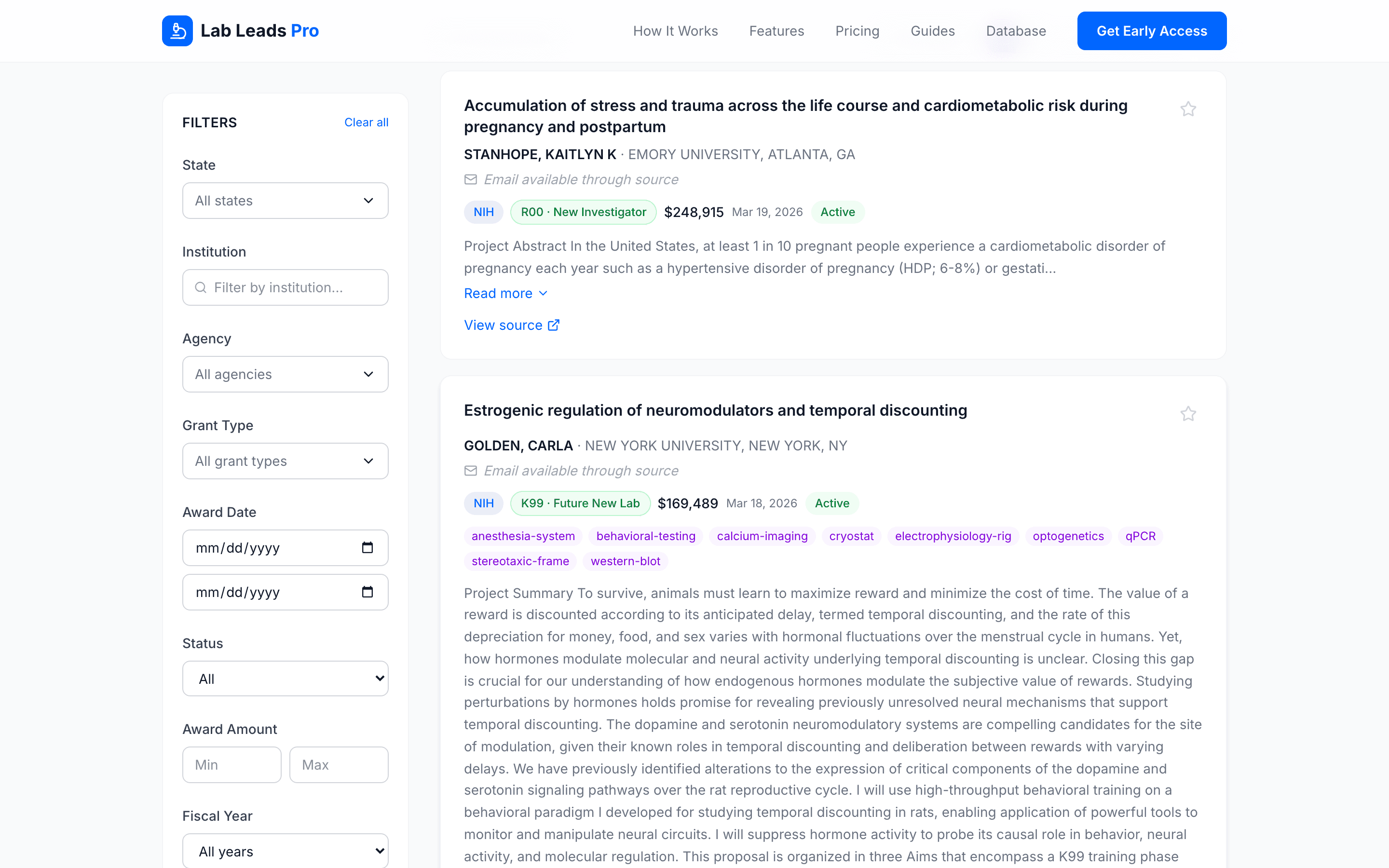
The insight: A professor who just moved to a new university or just won their first independent grant needs to outfit an entire lab. That is not one instrument — it is 10-20 instruments over 6-12 months. These badges exist to make sure you never miss that window.
Favorites
Save the grants that matter most to your pipeline.
Click the star icon on any grant card to save it to your favorites. The star turns gold when a grant is favorited. Build a shortlist of the leads you are actively working without losing them in search results.
Viewing Your Favorites
Click the "★ Favorites" button above the results to toggle between all results and your saved grants. When active, the button highlights and only your favorited grants appear.
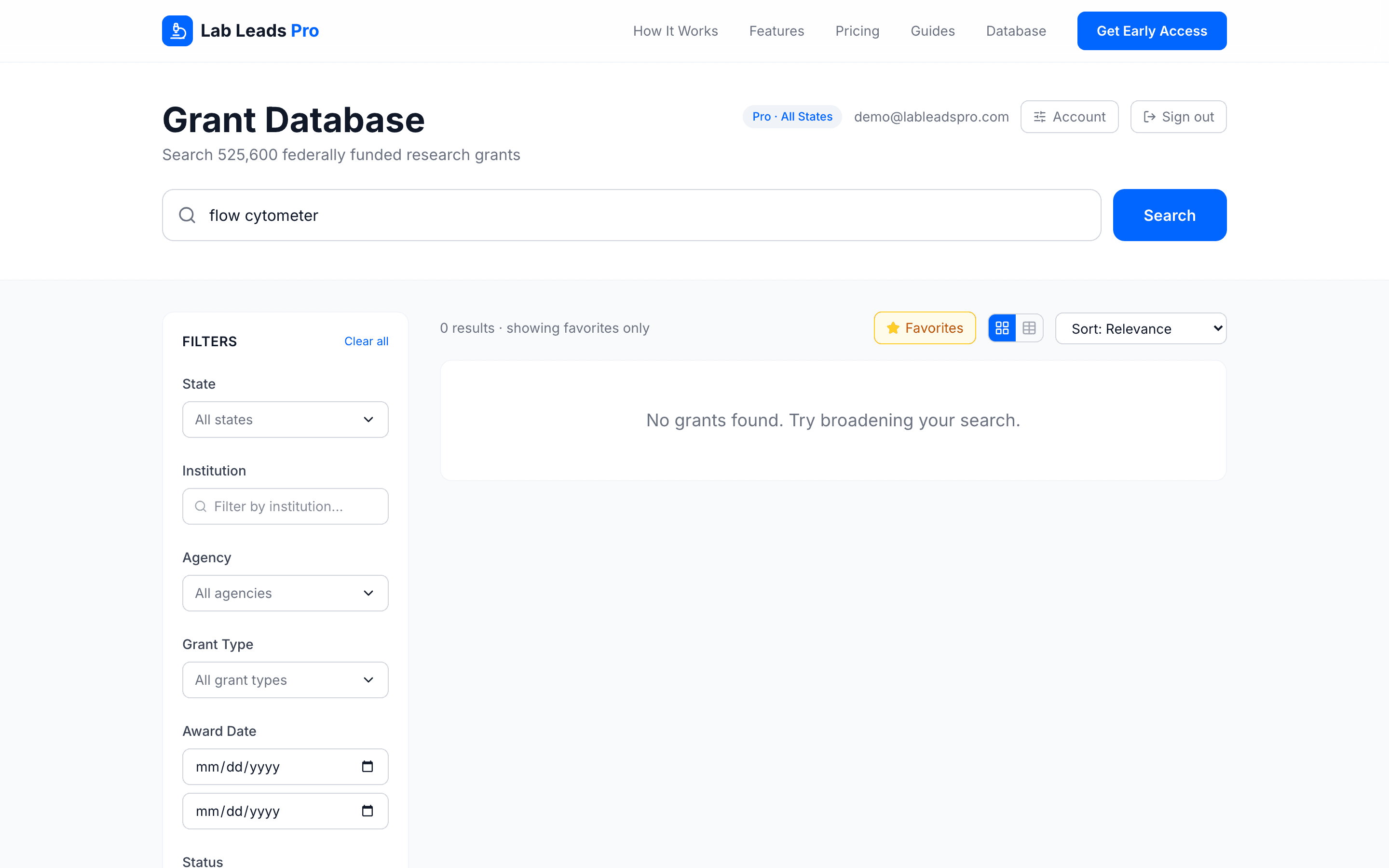
- Favorites persist across sessions. Log out, come back next week, and your favorited grants are still there.
- Use favorites as your working pipeline. Star the grants you plan to follow up on this week. Unstar them when you have made contact or moved on.
- Pro subscribers get enriched favorites. When you favorite a grant on a Pro plan, we run additional enrichment on that specific grant — deeper contact verification, office and building information, and expanded abstracts for grants from thinner data sources. The grant you care about gets our best data.
Pro tip: Favorites are also a great way to prepare for campus visits. Star every grant at a university you are planning to visit, then filter to favorites and you have your call sheet ready to go.
Finding PI Contact Information
How to get in touch with the people who control the budget.
When a grant shows "Email available through source" instead of a direct email, it means the PI's email is on the original grant record. Click the "View source" link to go straight there.
Email Availability by Agency
Not all agencies publish PI emails the same way. Here is what you can expect from each source.
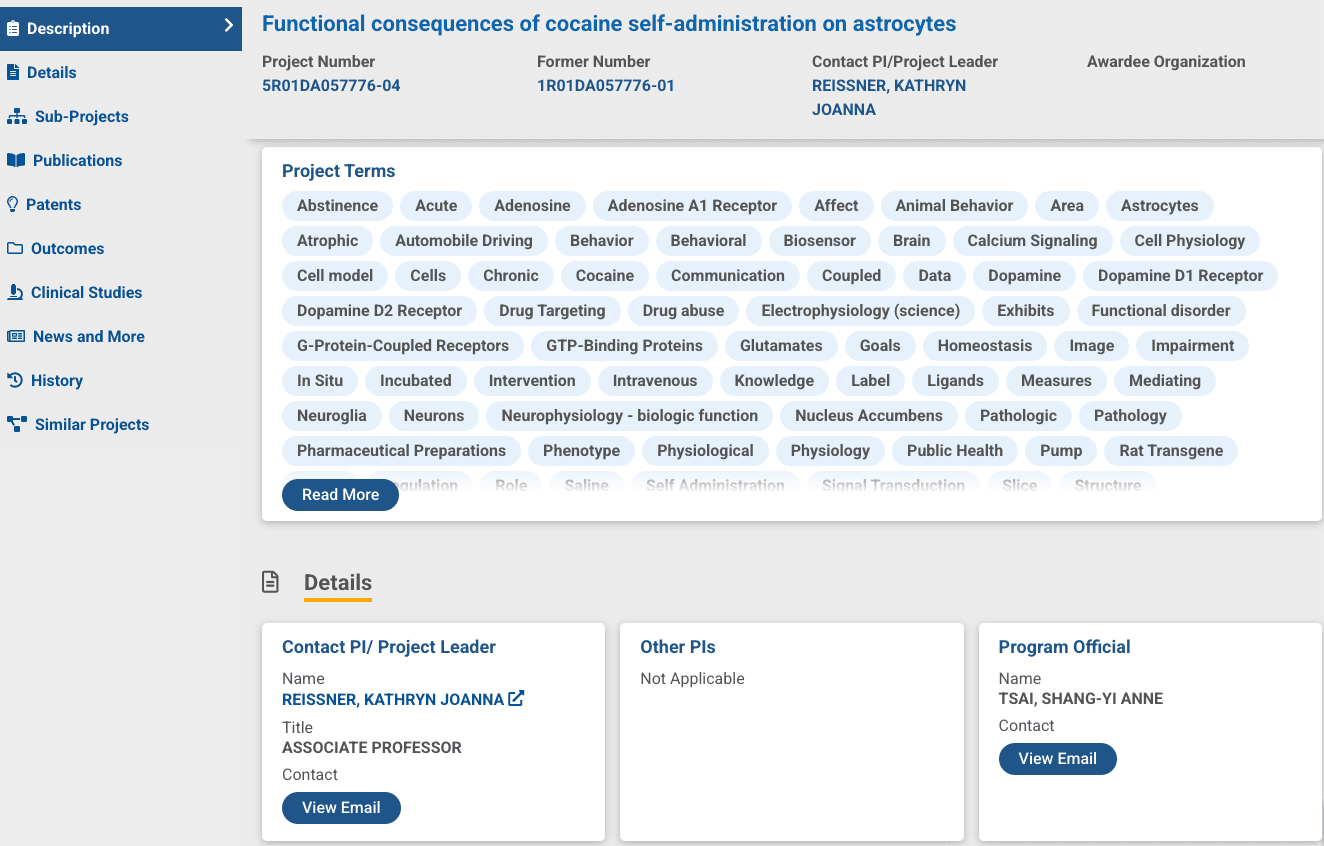
- NIH grants: We have verified PI emails for about 80% of PIs directly in the database. For the rest, click "View source" to go to NIH Reporter and hit the "View Email" button in the Details section. Takes about 10 seconds. But when you have 50 leads to work through, those seconds add up. That is why we pre-verify as many as possible.
- NSF grants: We pull PI emails directly from the NSF API. Good coverage.
- VA grants: PI emails available through VA and often through their university appointment.
- DOD, DOE, NASA, USDA, CDC grants: These come from USASpending data, which has shorter descriptions and less PI contact info. We provide the institution and sometimes the department, but email coverage is thinner. Use the PI name + institution to find them through Google Scholar, their university directory, or PubMed.
Pro tip: The grants where we already have the PI email are the fastest path to a conversation. Start there. For the rest, the PI name and institution get you 90% of the way. A quick search of their university directory or Google Scholar will get you the email.
What If the Email Doesn't Match the Institution?
We pull PI emails from PubMed, NSF records, NIH FOIA data, and other public sources. Sometimes you will see a PI whose email domain does not match the institution listed on the grant. For example, a grant awarded to the University of Michigan but the email on file is from their previous position at Johns Hopkins.
This is actually a useful signal. It usually means the PI moved institutions recently. A professor who just moved is almost certainly setting up a new lab and buying equipment. Treat it as a hot lead, but verify their current email through the View Source and View Email process described above, or check their new university's faculty directory.
Pro tip: A mismatched email is not bad data. It is a buying signal. New lab, new equipment budget, and no existing vendor relationships. These are some of the best leads in the database.
Pro Tips
Power-user moves that will save you time and surface better leads.
- 1.Click a PI name to see ALL their grants, not just the one you found. A PI with five active grants has five times the budget.
- 2.Sort by "Newest" to see what was just funded this week. Fresh awards mean fresh budgets and PIs who are ready to buy.
- 3.Search for your competitor's products to find labs that already use similar equipment. If they have a competitor's system and just got new funding, that is a replacement or upgrade opportunity.
- 4.Combine filters for laser-focused prospecting. State + agency + grant type narrows thousands of grants down to the handful that matter most for your territory.
- 5.S10 and S10OD grants are guaranteed equipment purchases. These grants exist specifically to buy shared instrumentation. Search for them first.
- 6.New R01s (check award date) often mean new equipment budgets in year 1. A PI who just landed a 5-year R01 is setting up their lab and needs instruments.
Ready to find equipment leads?
See a sample report with real grant data from your state, scored for equipment buying signals. Or jump straight in and start prospecting.